AI assistant and Little Mux
The sidebar's AI assistant has Chat, Model, Appearance, and External AI tabs. It shares conversation and task state with the in-app Little Mux companion. Network features work without an AI provider.
Configure a model
- Open AI assistant → Model and choose the protocol your provider supports: OpenAI-compatible Chat Completions, Responses, or Anthropic Messages.
- Enter the service URL and required authentication. Remote services require HTTPS; local loopback services may use HTTP. Match the provider's root URL, custom prefix, or complete endpoint without duplicating path segments.
- Fetch and search the model list, or enter a Model ID manually. Listing a model does not prove tool support.
- Select Save and test tool calling. This checks tool names and arguments without starting the network service or changing networking. It still contacts the provider and may incur charges.
- Start with a read-only request: “Read the current network state and explain my selected adapters and scheduler. Do not change anything.”
If chat works but the test fails, check the protocol, endpoint, authentication, and model's tool support. Never put an API key in chat or a feedback screenshot.
Requests and confirmations
Name the target and desired result. For example: “Read my rules and explain Steam's outbound, without editing anything.” Ask for changes separately when ready.
| Capability | Boundary |
|---|---|
| Status, adapters, connection summaries, redacted diagnostics | Summaries do not replace application-level verification |
| Mode, participating adapters, service start | Stop before changing mode or membership; explicit start requests may execute directly |
| Four schedulers and adapter weights | Hot updates depend on Core support; existing TCP connections stay bound |
| Query and edit individual routing rules | Rules apply in TUN mode; verify with new connections |
| NAT tests, Steam optimization, saved-hotspot control, network component repair | Feature prerequisites and confirmations still apply |
| File import/export, subscriptions, MTU changes, provider secrets, appearance | Use their dedicated pages; consult the actual capability list |
Not every built-in assistant change asks first. Ordinary rule edits, starting, and some configuration changes may execute directly. Stopping aggregation, sharing, and system repair follow the application's confirmation flow. External MCP writes require in-app confirmation. If configuration changes while approval is pending, refresh state and request the operation again.
Messages carry the page name and selected routing-rule context at send time. Navigating elsewhere does not retarget an existing task. Stop next actions cancels subsequent model steps; it neither undoes completed changes nor stops the network service.
Companion and skins
Little Mux appears inside HypoMux, not on other applications. Drag it, open quick input, read reply summaries, or enter the workspace for complete replies. Collapsing the bubble or navigating away does not cancel a task. Visibility is controlled in Settings.
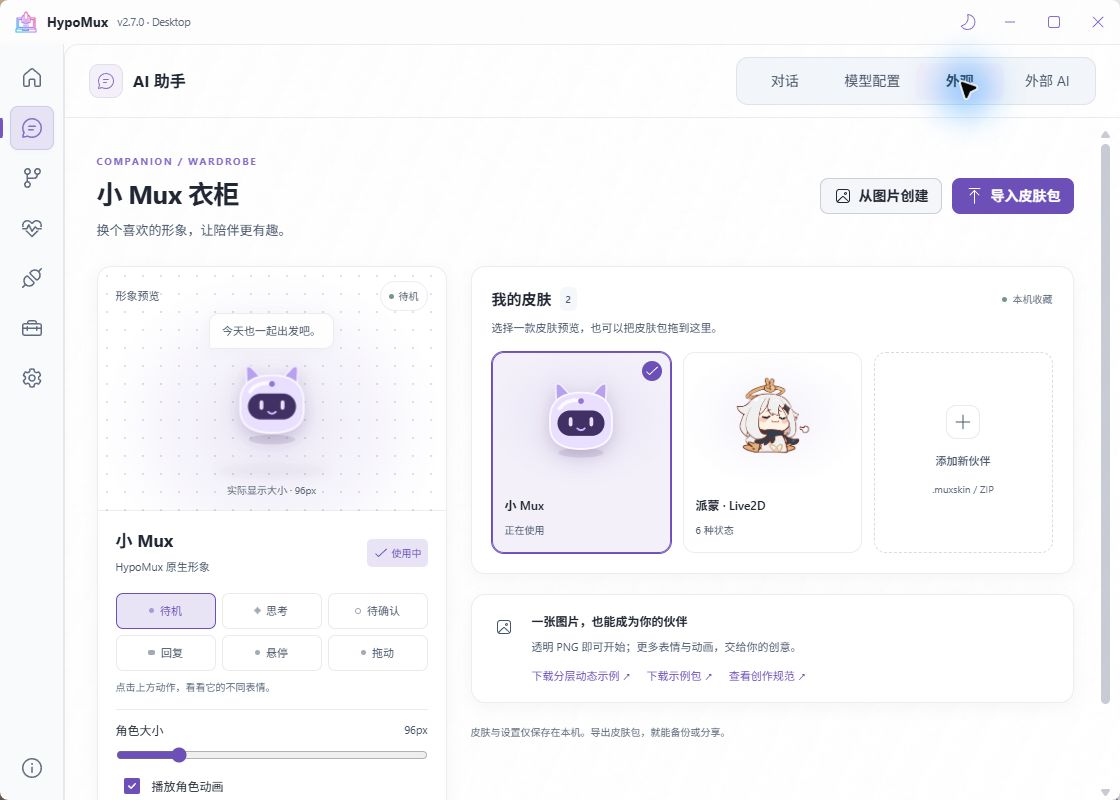
Under Appearance, import a .muxskin / ZIP package or create a skin from a transparent PNG. Preview states before applying; adjust size and animation or restore the default. Live2D behavior depends on the model's resources, with an image fallback on load failure. Skins cannot change provider configuration or tool permissions.
Skins live in local WebView storage. Export them before migration or clearing browsing data. Extra skins in the screenshot are local imports, not a promise of bundled content.
External AI access
The local Streamable HTTP MCP endpoint is disabled by default and defaults to read-only access. It exposes HypoMux tools to a compatible client on the same computer; it is not a model provider.
- In External AI, choose a port and keep Read-only queries and diagnostics for initial use.
- Enable access when needed and copy the displayed URL and authorization header into your client's MCP configuration, not its chat.
- Query state first. Review the source and operation in HypoMux before approving a write.
- Disable access when finished. Re-enabling generates a new key; exiting the app invalidates the connection too.
The endpoint listens on loopback only, so a remote cloud client cannot directly reach it. HypoMux does not configure other clients automatically or expose general terminal execution or arbitrary file-reading tools.
Data and privacy
- Conversation and necessary tool results go to your configured model provider, which may charge for processing. Adapter names, processes, and rule values may contain personal information.
- Automatic diagnostics are redacted, but manually entered text is not automatically sanitized. Do not send passwords, tokens, or private raw logs.
- Saved keys and history are encrypted for the current Windows user. Changing provider, protocol, authentication, model, or key isolates prior context; old records remain readable.
- Read-only MCP still grants data access. The connected client controls further processing of tool results; connect trusted clients only.
Common issues
- No model list: Enter a provider-supplied model ID manually if discovery is unsupported, then test tools.
- The answer says done but state differs: Inspect tool results and errors, refresh state, and distinguish saved rules from verified new connections.
- A live conversation must remain connected: Request queries only, without starting, stopping, or changing networking. Avoid ambiguous requests to “optimize everything.”
See routing, scheduling, hotspot, and issue reporting.