Toolbox: Steam download optimization
The Toolbox in the sidebar holds optional features. Its first tool is Steam download optimization. It is off by default, marked experimental, and works in both System Proxy and Virtual Adapter modes.
What it addresses
The Steam CDN node you are assigned is not always the one that performs best on your network. When enabled, HypoMux discovers other candidate nodes for the same domain on your actual egress adapters, verifies them, trials them on a small scale, and gradually prefers the ones that perform better for new connections.
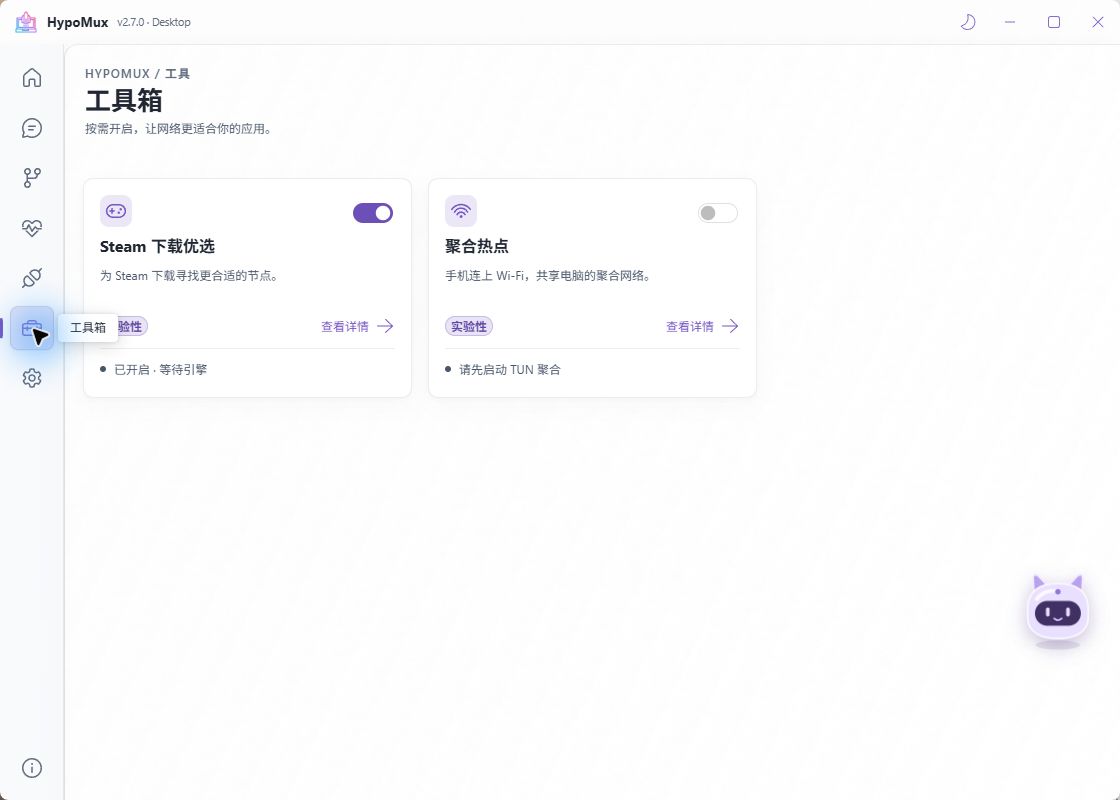
Toolbox also offers aggregation hotspot. The screenshot shows a locally saved enabled preference, not the default. “Enabled · waiting for engine” does not indicate optimized downloads.
Turn it on and off
- Open Toolbox in the sidebar and use the switch on the Steam download optimization tile, or open the tile and switch it there.
- The status text under the tile moves through stages such as "Enabled · waiting for download", "Download recognized · using original nodes", "Checking candidates", and "Optimizing".
- Turning the switch off stops the feature: probing is cancelled and the existing ranking is cleared.
Switch changes apply to new connections only and never interrupt a download that is already running. To see the change sooner, pause and resume the download in Steam so it reconnects.
Reading the detail page
Open the tile to check whether the feature actually took part in your download.
Download activity
| Metric | Meaning |
|---|---|
| Connections switched | Connections assigned to a candidate node. |
| Connections with data | How many of those connections actually moved data. |
| Preferred nodes | Nodes with a confirmed, repeated advantage that now take priority. |
| Connection fallbacks | How often a switched connection fell back to the original node. |
If Connections switched is above zero while Connections with data stays at zero, connections were switched but carried no traffic — do not treat that as a working optimization. Below these metrics the page also reports switched traffic, original traffic, and transfer failures so you can compare the two shares.
Download nodes table
Each row lists the node IP, its domain and port, the egress adapter, switched rate (5 s), total rate (5 s), connection count, and state:
- Original node · observation only — the node Steam already used, kept as the comparison baseline.
- Candidate unavailable — discovered but not yet verified, or temporarily not eligible for a trial.
- Verified candidate — passed content and TLS validation and can enter a trial.
- Preferred — confirmed an advantage across consecutive windows and now takes new connections.
- Cooling down — paused after failures or sustained low throughput.
The rates in this table are observed values, not link capacity. Re-evaluate nodes clears the current ranking and starts learning again, which is useful after a network change or when you want a fresh comparison.
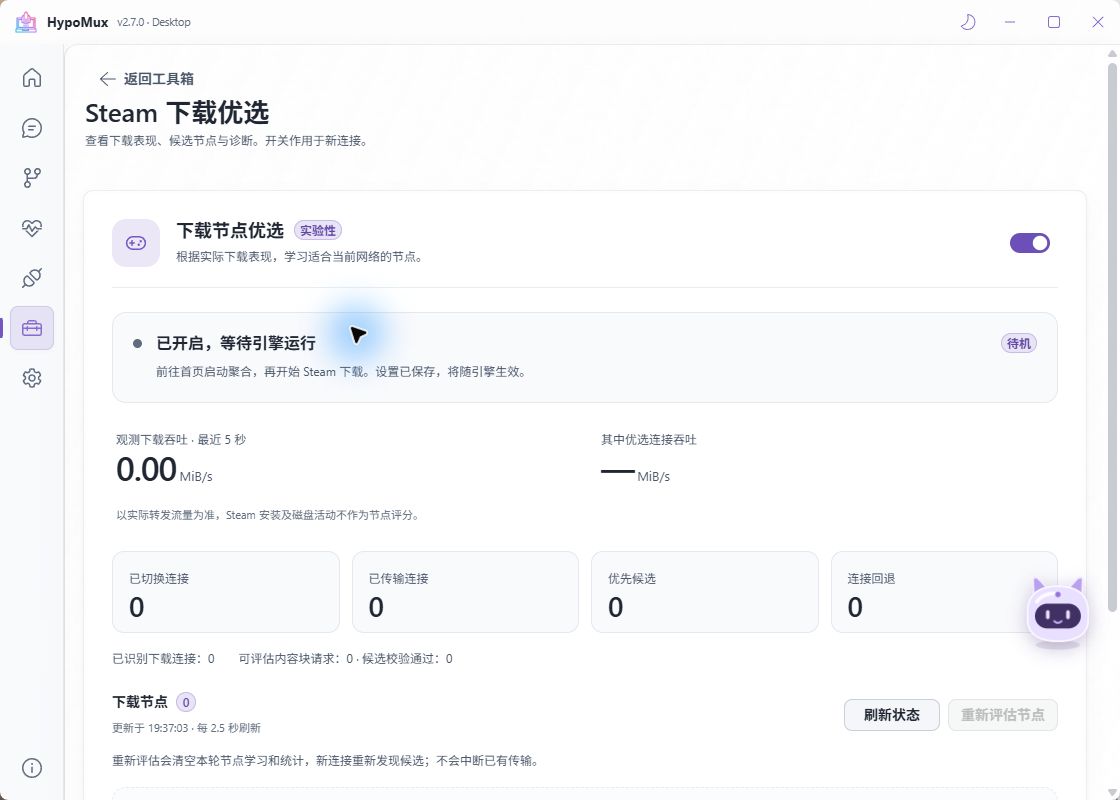
States and filters in 2.7
The detail page distinguishes disabled, waiting for engine, unsupported Core, waiting for downloads, validation, learning, and preferred nodes. Search/filter nodes and inspect valid samples, failures, cache state, and update time. Refresh reads state; re-evaluation resets rankings and learning. Do not treat stale records as current download performance.
Discovery and verification details
The collapsible section holds diagnostics: per-stage counts, the most recent discovery records, and short-test reference rates. Short-test values are labelled "short-test reference, not actual download rate" and only order the trials — do not read them as a speed test.
Boundaries
These are built-in constraints. Check them first when the feature looks inactive:
- Handles supported Steam download domains on TCP 80/443 only; other traffic is untouched.
- Does not modify system DNS, hosts, or Steam files, does not pin a country, and does not override your DNS settings.
- HTTPS stays end-to-end encrypted. Downloads are not decrypted and no certificate needs to be installed.
- A candidate must pass content and TLS validation before any trial; a content mismatch withdraws it.
- Probing is limited by traffic, request count, and concurrency. It never downloads a large file just to measure speed.
- When DNS returns a single address, a LAN cache is hit, or a request carries unsupported authentication, the original route is kept.
No guaranteed speedup
Results depend on the available CDN nodes and your network; a speedup or full bandwidth use is not guaranteed. The share of switched traffic is also not the share of improvement — forwarded bytes include protocol overhead and do not represent a net gain. Turn it off if it does not help.
Judging whether it helps
Compare sustained download speed before and after, on the same game and the same download region, rather than comparing peak values:
- With optimization off, start a download and record the speed once it stabilizes.
- Turn optimization on, then pause and resume the same download so it reconnects.
- Wait until the status reaches "Optimizing" and record the sustained speed again.
- Confirm on the detail page that Connections with data is above zero, so switching genuinely carried traffic.
Steam's own download region, disk write speed, and how the game files are chunked all affect the outcome. Repeat the comparison before drawing a conclusion.
Common situations
- Stuck at "Enabled · waiting for download" — no Steam download traffic has been recognized. Confirm Steam is downloading and that its traffic passes through HypoMux; in System Proxy mode Steam must follow the system proxy, so restart it if needed.
- "Start a compatible Core to view optimization status" — the running Core does not support the feature. Complete a version upgrade.
- "Download recognized · using original nodes" — downloads were recognized but no candidate has been verified yet, or DNS returned only the original node. This is expected.
- A candidate stays in "Cooling down" — that node performs poorly or failed repeatedly on your network. This is expected behavior and needs no action.
Related pages
- To send Steam through aggregation or pin it to one adapter, see Routing rules.
- If overall download speed is below expectations, see Troubleshooting.