Settings
Settings are grouped into Personalization, General, Network and DNS, Advanced network, and Configuration and startup. The section index at the top of the page jumps directly to a group.
Most switches are written to the configuration as soon as they are saved, but settings that affect proxy ports, DNS, and the virtual adapter take effect only after you restart aggregation. Stop aggregation before changing them, and change one setting at a time so you can tell what each change did.
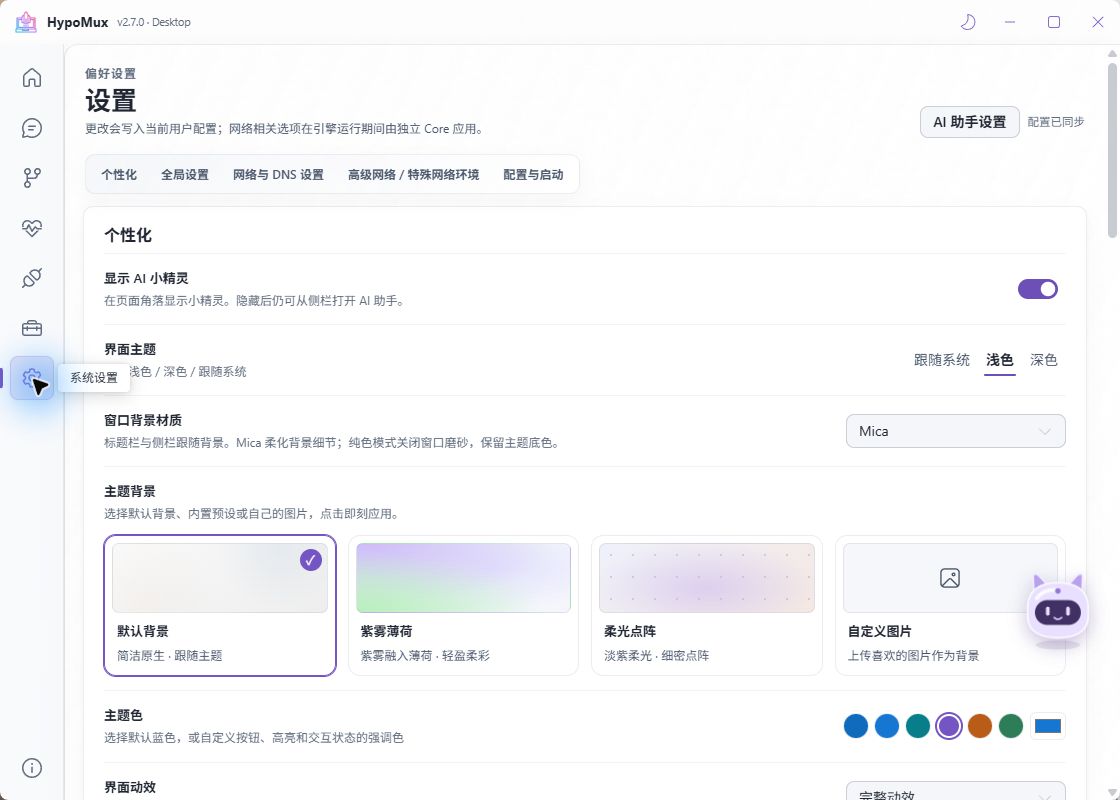
Personalization
Includes the interface theme (system, light, dark), accent color, window background material, card material and frost strength, interface motion, and a custom background image. These options change appearance only; they do not change network behavior.
If the interface feels slow on a low-powered device, set Interface motion to reduced or off and switch Card material to solid cards.
The companion visibility setting controls Little Mux inside the app. Manage skins, size, and animation in AI assistant → Appearance. Hiding it does not cancel a running AI task.
General
| Setting | Description |
|---|---|
| Language | Switches the interface language; applies immediately. |
| Hide virtual adapters on Home | Enabled by default; hides adapters such as VMware and Hyper-V. Turn it off to show every adapter. Existing selections are preserved. |
| Close behavior | Choose whether closing the main window minimizes to the system tray or exits the program. |
| Local proxy ports | SOCKS5 and HTTP/HTTPS listening ports, range 1–65534, 10800 and 10801 by default. |
| Manage Windows system proxy | When enabled, System Proxy mode configures Windows automatically. Disable it to expose only the local ports for apps you configure manually. |
Check here first when an adapter is missing
Hide virtual adapters on Home is enabled by default. If an adapter is missing from Home, first confirm it is not a virtual adapter hidden by this switch. Home shows how many adapters are hidden and how many of them are selected.
Port and system-proxy changes apply the next time you start aggregation. After you disable the takeover, apps without a manual proxy configuration no longer enter aggregation; configure them with 127.0.0.1 and the ports set here. Update the addresses already entered in download managers after changing a port.
Update channel
Choose Stable or Preview (Beta / RC), then check for updates in About. Switching back to Stable does not downgrade; see update channels.
Network and DNS
This group decides how HypoMux resolves domains and which adapter sends the resolution requests. With multiple adapters, the path DNS takes directly affects which CDN nodes you receive and whether some sites are reachable.
| Setting | Values | Description |
|---|---|---|
| DoH policy | Automatic / Off / AliDNS / Tencent DNSPod | Prefers encrypted HTTPS/443 resolution by default. When off, only conventional DNS (UDP/TCP 53) bound to the selected adapter is used. |
| Conventional DNS fallback server | IPv4 address, such as 223.5.5.5 | Used as the port 53 resolver when DoH is unavailable or disabled. |
| DNS egress adapter | Automatic / Windows default route / a specific adapter | Automatic follows the IPv4/IPv6 default routing rules first, then the Windows default route. |
Select the save button in this group after editing, then restart aggregation once. An invalid value reports Invalid DNS address; enter a valid IPv4 address.
When to change these
- A site loads on only one link: pin DNS egress adapter to that adapter so resolution and connections use the same link.
- Your network blocks or intercepts DoH: set DoH policy to off and enter a fallback DNS server that works on that network.
- Resolution is slow or first connections stall: keep automatic, or name a DoH provider with low latency in your region.
WARNING
After you pin a DNS egress adapter, taking that adapter offline affects all domain resolution. On campus or corporate networks that need an internal resolver for internal domains, change these values carefully and verify that internal systems are still reachable afterward.
Advanced network
Intended for unusual network environments. Home networks can normally keep the defaults.
TUN stack
Selects the stack used by Virtual Adapter mode: system, mixed, or gvisor. See TUN stack selection for the full comparison.
Strict routing and DNS leak protection (WFP)
Enabled by default to stop Windows multi-adapter DNS from bypassing the virtual adapter. Incompatible devices fall back automatically to a compatible TUN on that machine only.
Disable it only after confirming a conflict with local security software or network components. With it off, some DNS queries may not pass through the virtual adapter.
Network components and TUN compatibility
Recheck and repair verifies that the WFP / BFE components are available and attempts a repair followed by verification when it finds a problem. The check does not create a virtual adapter when HypoMux starts.
This is the first thing to try when Virtual Adapter mode fails to start or reports a network-component problem — it is more targeted than reinstalling.
Per-NIC blocked domains
Also called the auto-bypass list, or domain isolation. When one adapter fails to reach a domain while another adapter can, HypoMux records that domain on the failing adapter's blocklist so later routing avoids it.
This targets unusual networks
The in-app description states that it is "recommended only for school or corporate users with specific needs, and not recommended for home users." When every link reaches the same destinations, enabling it provides no benefit and a single transient failure can add a domain to the list.
The related settings are in the Advanced network group:
| Setting | Description |
|---|---|
| Enable auto-bypass list | Bound to the engine once enabled; turning it off pauses avoidance. |
| Blocklist auto-expiry | Entries recover automatically after 30 minutes. With it off, entries are never removed automatically. |
| Per-NIC blocked domain records | Select Manage to open the records page, where you can view, refresh, remove, or clear entries. |
The records page lists entries by adapter and domain with the remaining recovery time, or "Permanent". Clearing removes confirmed records for every adapter and cannot be undone; new comparative failures may create records again afterward.
If you see HM-E1701 (domain-isolation record operation failed), confirm the Core service is available, then refresh or retry on this page.
Configuration and startup
| Setting | Description |
|---|---|
| Launch at startup | Starts HypoMux silently at sign-in and minimizes it to the system tray. |
| Start aggregation at startup | Requires launch at startup. Starts aggregation with the last saved mode and adapters. |
| Connect Wi-Fi at startup | Before automatic aggregation, tries to connect the selected wireless adapter to a network saved in Windows that allows automatic connection, and waits a limited time for it. |
| Configuration path | Shows the current configuration directory and can open it. |
Complete one successful manual start before enabling automatic aggregation, so the saved mode and adapter selection are known good — automatic startup reuses them. Disabling launch at startup, switching modes, or changing the selected adapters cancels the pending wait so it never starts from a stale configuration.
The legacy configuration migration entry sits next to the configuration path. Export a rule backup before migrating. If migration fails, the message names the file that failed and any port conflict; follow it rather than deleting the configuration directory.
Related pages
- Home, Connections, and Network Check are described in the Interface guide.
- Operating modes and scheduling are covered in Connection aggregation.
- Per-app outbounds are covered in Routing rules.
- If something breaks after a change, work through Troubleshooting and note which setting you changed.