Interface guide
Most actions start from Home: select working networks, choose an operating mode, and start aggregation. Use the sidebar to inspect connections, manage routing rules, and run Network Check.
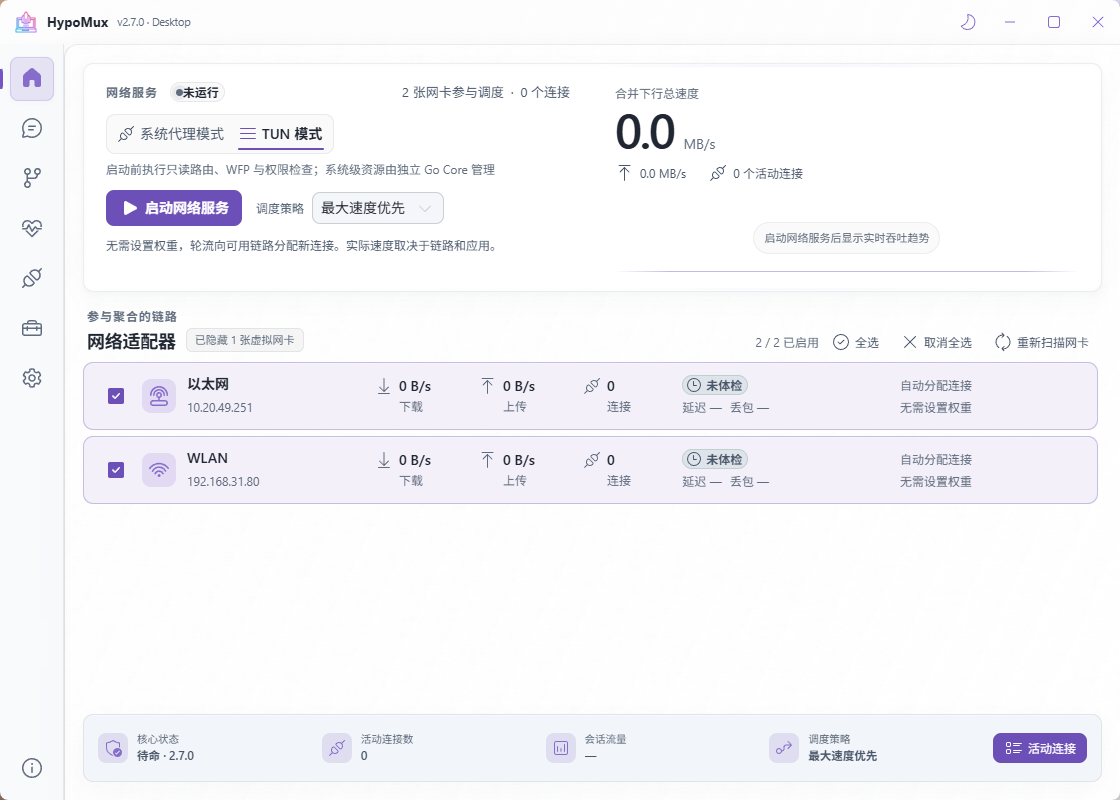
Home: choose adapters and start
Home lists active network adapters. Select the paths you want to aggregate; selected adapters show rates, connections, and health; weight/share fields depend on the scheduler.
- Select Refresh after connecting a new adapter or restoring a connection.
- Select two or more active adapters with independent internet access.
- Choose System Proxy or Virtual Adapter at the top.
- Select Start network service. Stop before changing adapters or mode; 2.7.0 supports live scheduler and weight updates. See scheduling.
Status and connections
When running, the status bar shows engine state, active connection count, and session traffic. Open Connections to verify whether new connections are using selected adapters. These figures represent traffic handled by HypoMux, not necessarily all traffic on the computer.
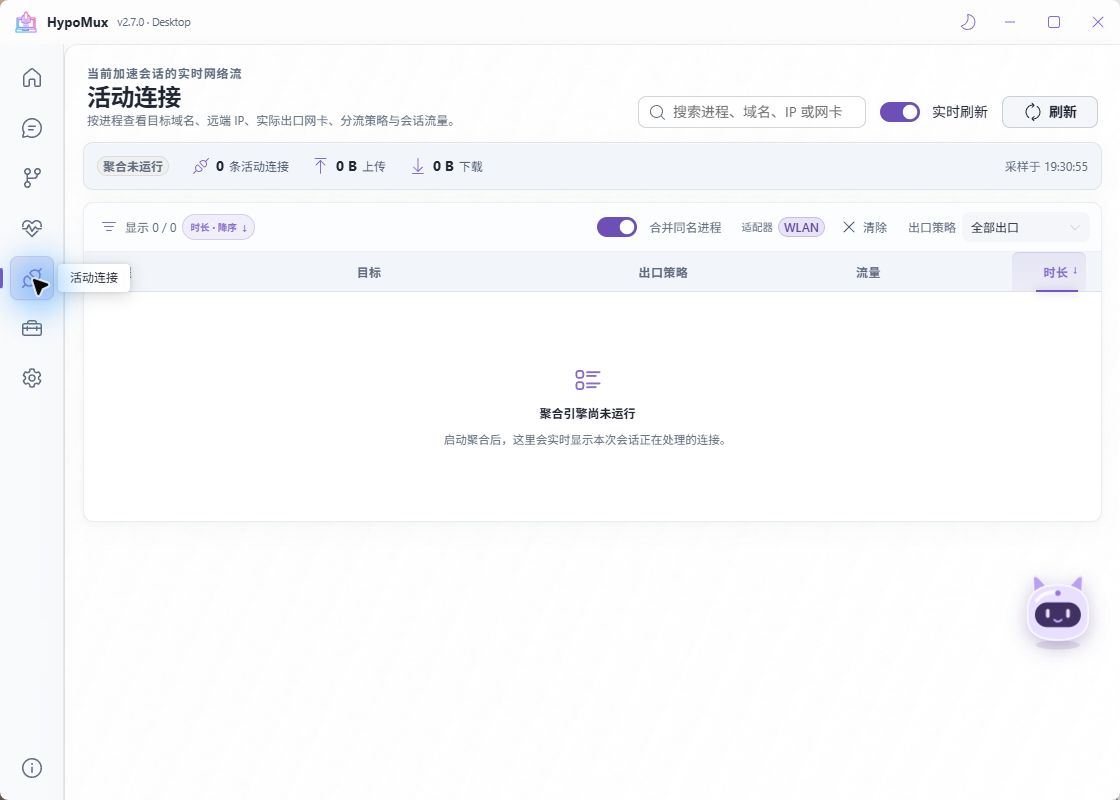
Search, grouping, and empty lists
Search processes, domains, IPs, or adapters; filter outbounds and merge same-name processes. Opening connections from a Home adapter applies an adapter filter. Clear filters and refresh if records appear missing. Expand groups for individual connections and routing shortcuts.
“Aggregation engine not running” and zero connections are normal while stopped. If the list stays empty after starting, check whether the app uses the selected proxy/TUN and has created new connections. This is not a list of all computer traffic.
Network Check
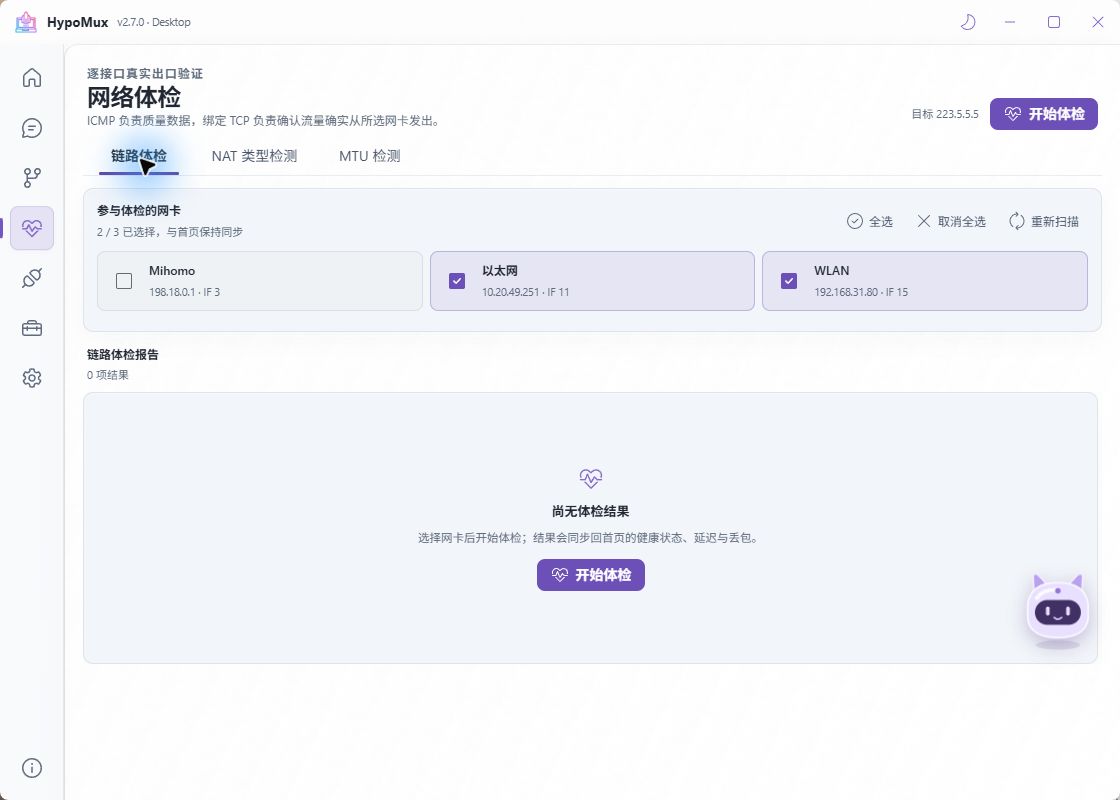
Link health checks base configuration and bound egress. ICMP measures latency, jitter, and loss; bound TCP checks that traffic can leave through that adapter. Results appear on Home.
| Result | Interpretation |
|---|---|
| Bound egress reachable | A candidate path, not a guarantee for every destination or faster downloads |
| High ICMP loss or jitter | Compare bound TCP and real applications; ICMP filtering alone does not prove disconnection |
| Bound TCP failed | Check login, gateway, and target reachability before relying on the path |
| Not checked | No result yet, not a defective adapter |
Adapter selections are shared with Home. Results describe the tested path at that time, not all applications.
NAT type detection
Open Network diagnostics → NAT type detection. A few IPv4 UDP STUN probes inspect mapping and filtering on the selected egress, helping diagnose games, voice calls, and other peer-to-peer connections.
- Stop aggregation first. Testing is blocked while aggregation runs so the result can be attributed to the selected physical adapter.
- Select an active Egress adapter with a valid IPv4 address. Test each network separately.
- Leave STUN on Automatic selection to try servers in order, or select/add an IPv4 STUN server supporting RFC 5780 behavior discovery using
host:port. - Start the test. Review the NAT type, mapping and filtering behaviors, public endpoint, adapter, STUN server, and completion time.
Ordinary testing does not change proxy, routing, or adapter settings. The public endpoint is the IP and UDP port observed by the server, not a permanent port mapping for other applications.
Reading the result
Mapping describes whether the public endpoint is reused across destinations. Filtering describes which remote peers can send packets to an existing mapping. Endpoint-independent behavior does not depend on the remote IP or port; address-dependent behavior depends on the IP; address-and-port-dependent behavior depends on both. Read mapping and filtering together.
| Result | Meaning | Possible impact |
|---|---|---|
| Publicly reachable | Local and STUN-observed endpoints match; no translation was detected | NAT is not observed, but filtering and firewall rules may still prevent inbound access |
| Full-cone NAT | Endpoint-independent mapping and filtering | Generally favorable for UDP hole punching, subject to the peer's network and application |
| Restricted-cone NAT | Endpoint-independent mapping; filtering permits previously contacted IPs | Outbound contact is needed before the peer can send packets back |
| Port-restricted-cone NAT | Endpoint-independent mapping; filtering permits previously contacted IP-and-port pairs | Peers must coordinate traversal; some combinations require a relay |
| Symmetric NAT | Address-and-port-dependent mapping | Direct P2P traversal is harder; a relay may be needed |
| Mixed behavior | An observed combination outside this tool's classic categories | Inspect the raw behaviors and application results; this is not a failed test |
| Inconclusive / Needs calibration | Insufficient evidence or possible host-firewall interference | Do not assume symmetric NAT; follow the troubleshooting steps |
What NAT type can affect
NAT behavior mainly affects UDP hole punching, P2P connection establishment, and inbound reachability. Restrictive behavior can prevent joining some game sessions or establishing voice connections. Applications may fall back to a relay, which can add latency or limit throughput depending on the relay path and both peers' networks.
NAT type is not a speed score. It does not by itself predict browsing or download performance; aggregation also depends on concurrency, path quality, and the server. It is not a firewall security grade, nor a direct equivalent of a game's Open/Moderate/Strict or NAT 1/2/3 labels.
This is a snapshot of IPv4 UDP behavior for the selected adapter and current network, not a verdict on TCP, IPv6, or every application. Retest after network or router changes. Multiple NAT layers, including ISP address sharing, can contribute to the observed path. Detection uses RFC 5780; mapping and filtering terminology comes from RFC 4787.
Toolbox
Toolbox offers experimental Steam optimization and aggregation hotspot. Steam supports both modes; hotspot requires running TUN.
MTU and AI assistant
Network diagnostics includes MTU detection, with separate testing, confirmation, and restoration. Stop the network service first.
The sidebar's AI assistant contains chat, provider configuration, appearance, and local external-AI access.
Settings and logs
Settings is grouped into Personalization, General, Network and DNS, Advanced network, and Configuration and startup. Common options include the local proxy ports, system-proxy takeover, DoH policy and DNS egress adapter, the TUN stack, and launch/aggregation at startup. Each one is described in Settings.
Manual update checks are on About; see Upgrading. If a problem occurs, preserve notification details and logs, then record the mode, adapters, and time using the report template.
Under Advanced network / special network environment, TUN stack supports system / mixed / gvisor. The selection saves automatically and applies the next time Virtual Adapter mode starts. The same group holds the strict routing and DNS leak protection switch and the network components and TUN compatibility check.